Tuesday, August 21, 2012

how to make a seamless repeating pattern


Making a seamless pattern for things like fabric, wallpaper backgrounds or scrapbook paper seems confusing and daunting, but it's actually incredibly easy when you get the hang of it! I've been working on a lot of patterns lately for various projects and thought I'd share how I'm doing it in case anyone else is interested :) I use photoshop to make my patterns, but if you don't have the software there's a neat computer-free tutorial on Design Sponge.

To begin, draw your design on a piece of paper. Make sure none of the lines are touching the edge! Then scan the drawing into your computer. (I use an Epson Perfection V30 scanner.)


Open the drawing in photoshop. Go to Image > Image Size and write down the pixel size. My drawing was 2000 x 2400. Then go to Filter > Other > Offset. Select "Wrap Around." Divide the image size in half, and enter those numbers. So mine would be 1000 and 1200.

(I know I'm absolutely pitiful at explaining how to do things in photoshop so I put a screencast of all the photoshop steps at the end of this post. So if something I say makes no sense whatsoever, watch the video and that should help lol...)


Print your adjusted drawing and layer tracing paper on top. Fill in the big white spaces in the middle to create a seamless design. Once again, make sure that none of your lines go to the edge of the paper! Once you're happy with it, scan your new drawing.


Open it in photoshop, and delete the background. Then copy and paste the image onto the first scan, layering it on top to create the seamless pattern. Flatten the image (Layer > Flatten Image)

At this point, if you're uploading the design to a site like Spoonflower, this is the image you would use. They will automatically tile it for you! Neat-o!


But I also wanted to be able to tile my pattern for use on things like scrapbook paper or society 6 iphone cases without having to copy + paste the image and line it up over and over and over again. In order to do this, go to Edit > Define Pattern. Name your new pattern.


Create a new document. I made a 1000 x 1000px document at 300dpi. Make a new layer (Layer > New > Layer), fill the layer with any color.. it doesn't matter which one you choose (Edit > Fill) then go to Layer > Layer Style > Blending Options and select Pattern Overlay. In the drop down menu, you should see the pattern that you created! Clicking on it will generate a seamless repeat in your new document. You can adjust the size of the pattern by changing the scale.

And that's it! Now here is my photoshop screencast since I'm sure none of the things I just wrote made any sense whatsoever if you're not super familiar with photoshop (or even if you are... I'm just that bad at explaining stuff.)



Monday, June 18, 2012

Style Idol - Claudia Cardinale


//image links back to where I originally found it
+ I fiddled with it in photoshop

Friday, June 8, 2012

how to fill a locket


This is probably the stupidest thing to do a post about, but I have always been a little perplexed about how to perfectly fill an oval or circular locket. It's hard to just randomly cut out an oval and hope it fits, and the edges always end up looking jagged and messy. So now that I figured out how, I thought I'd share it in case anyone else was equally baffled :)


1. Measure the locket's height and width.


2. Create a new photoshop document with the same height and width. (My adorable Hypatia desktop background kind of looks creepy in this photo lol)


3. Create an ellipse shape that fills your document. That shape is now the size of your locket!


4. Open the image that you want in the locket. Copy it, and paste it into the document. Create a clipping mask (right click on the image layer and select "create clipping mask.") so that the image now takes on the shape of the ellipse.

5. Print it out! I have a Xyron sticker machine that can make anything into a sticker, so I usually run my image through that, cut it out and pop it in the locket. But you could also print it on sticker paper from Staples or go the old fashioned route and use a glue stick ;)


Tuesday, May 17, 2011

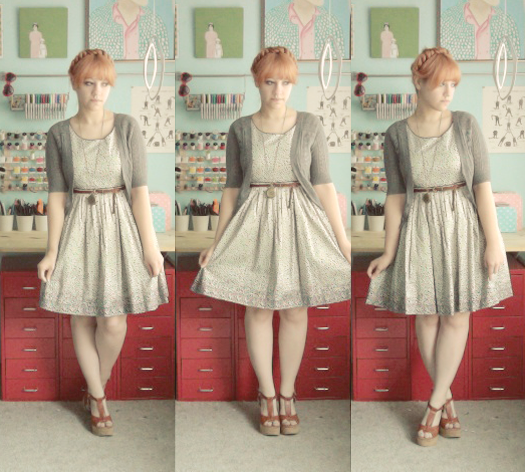
heidi called, she wants her hair back


dress - modcloth
shoes - blowfish
cardigan - forever 21
belt - old navy
locket - handmade

As much as I love my giant bun/beehive thingamajig, this is fast becoming my very favorite hairstyle. I know I'm overdoing it, wearing it this way almost every day now.. but it's SO easy!! And it's probably the only hairstyle I can think of that works with wet hair. I can't stand taking the time to blow dry all of my hair (I usually blow out my bangs then give up) so I just pin it up in braids, and I still look put together! A wet ponytail just looks kind of pathetic lol ;-)

Also, I've had a couple people ask me if I photoshop my pictures to get the color this way, and the answer is yes. I use the Heartland and Seventies filters from Pioneer Woman, and then set the opacity to 20% and 30%, respectively. Then I flatten the image & increase the lightness by 10%. I have all of that saved in one single action so I just hit "play" and my pictures come out this way in a pinch! :)

ps. I listed the first 14 of my paintings HERE! :)


Do you want to comment, but have no idea what to say? Trust me, I've been there! So to make things a little easier, here is a question you can answer if you can't think of anything else to say! :)

Favorite flavor of jell-o?

Tuesday, July 27, 2010

etsy resizing


Making sure your pictures look great on etsy can be tough, since the "list view" has pictures cropped to even squares and the "gallery" view has pictures cropped to wide rectangles. But if you use this photoshop action (or just follow the steps on your own) your pictures are pretty much guaranteed to look great in both shop views.

For treasuries and front page features, etsy always uses the gallery view -- so you want your photos to be cropped to look their best in this setting. I've found that if the sides of your picture are missing a little in the square view, it's hardly noticeable and doesn't take away from the image. But if your top and bottom are cropped out, it's usually VERY noticeable and detracts from the item.

So here's what you do:


1000 x 806 is the exact ratio of a gallery-sized photo, and reducing the size to 600 just makes the upload process go a little quicker. It's also a good size for uploading to your blog or facebook.

I combined these steps into a photoshop action (aka one of the best computer inventions ever!!) so that I just have to hit the play button when I open my photo and POOF! it's magically resized!

If you'd like to download the action, just right click on the file and save it to your computer:

etsyresize.atn